facebook twitter youtube facebook facebook facebook

E-Mail : info@askmlabs.com

Phone : +1.215.353.8306

Latest Post
Showing posts with label tracing. Show all posts

OEM LDAP Authentication Troubleshooting

Written By askMLabs on Wednesday, September 12, 2018 | 10:38 PM

In this post, we will discuss  troubleshooting OEM LDAP authentication issue. Due to various reasons, you may see sometimes the OEM users (LDAP users) getting Authentication failures. Well there could be various reasons for the authentication failures. We need to see how can we enable the tracing/debug to populate the detailed error messages in logs. The procedure is also explained in the Oracle Document.

Our troubleshooting started after users compaining about the authentication issues. We narrowed it with various testings/accessing other enterprise applications that the issue is only with the OEM. Now we have started our focus on troubleshooting authentication issue.

Check1 :

Check if the issue is with all the users ( Local and External ). If the issue is only with the External users(LDAP users), the primary focus of this post, Please proceed with the troubleshooting.

Knowing that the issue is only with the LDAP users, We focussed looking around the external ldap system. In our case, we are using Microsoft Active Directory to authenticate users to OEM.

Check2:

Check if the service account used to integrate for authentication is locked. The security/identity team in your Organization should be able to help you if the accout is locked or not. If the account is locked, Please have this account unlocked it. Verify if the issue is resolved.  But if the issue is not with the account locked, proceed to the next step to continue troubleshooting ….

Check3:

If the issue is not with the account locked, try enabling the Weblogic Debug/Tracing as described below ……

From the WebLogic Server Console, enable logging, set the WebLogic debug log level and then the enable the debug flag.

  1. Navigate to Environment->Servers->EMGC_OMS1 and choose the Logging tab.
  2. Under Rotation, set the file rotation size to 64000.
  3. Expand Advanced.
  4. Under Message destinations(s) (Log file: region) set the Severity level to Trace.
  5. Navigate to the Environment->Servers->EMGC_OMS1 and choose the Debug tab.
  6. Check WebLogic->security->atn->DebugSecurityAtn.
  7. Click Save.


Now these settings will create a logfile ldap_trace.logATN. This file ldap_trace.logATN is located at $OMS_HOME/../../gc_inst/user_projects/domains/GCDomain


Following log messages are populated when we try to access the OEM using LDAP user accounts….


[oracle@askmoem12c GCDomain]$ tail -f ldap_trace.logATN
17:31:47.729 ldc=6 Connected to ldaps://adauth.askmlabs.com:389
17:31:47.730 ldc=6 op=227 BindRequest {version=3, name=CN=oem.service,OU=Users,OU=Accounts,DC=askmlabs,DC=com, authentication=********}
17:31:47.732 ldc=6 op=227 BindResponse {resultCode=49, errorMessage=80090308: LdapErr: DSID-0C09042F, comment: AcceptSecurityContext error, data 532, v2580}
17:32:30.334 ldc=7 Connected to ldaps://adauth.askmlabs.com:389
17:32:30.334 ldc=7 op=228 BindRequest {version=3, name=CN=oem.service,OU=Users,OU=Accounts,DC=askmlabs,DC=com, authentication=********}
17:32:30.336 ldc=7 op=228 BindResponse {resultCode=49, errorMessage=80090308: LdapErr: DSID-0C09042F, comment: AcceptSecurityContext error, data 532, v2580}
17:35:00.485 ldc=8 Connected to ldaps://adauth.askmlabs.com:389
17:35:00.485 ldc=8 op=229 BindRequest {version=3, name=CN=oem.service,OU=Users,OU=Accounts,DC=askmlabs,DC=com, authentication=********}
17:35:00.487 ldc=8 op=229 BindResponse {resultCode=49, errorMessage=80090308: LdapErr: DSID-0C09042F, comment: AcceptSecurityContext error, data 532, v2580}
17:37:06.171 ldc=9 Connected to ldaps://adauth.askmlabs.com:389
17:37:06.171 ldc=9 op=230 BindRequest {version=3, name=CN=oem.service,OU=Users,OU=Accounts,DC=askmlabs,DC=com, authentication=********}
17:37:06.174 ldc=9 op=230 BindResponse {resultCode=49, errorMessage=80090308: LdapErr: DSID-0C09042F, comment: AcceptSecurityContext error, data 532, v2580}
17:39:45.033 ldc=10 Connected to ldaps://adauth.askmlabs.com:389
17:39:45.033 ldc=10 op=231 BindRequest {version=3, name=CN=oem.service,OU=Users,OU=Accounts,DC=askmlabs,DC=com, authentication=********}
17:39:45.035 ldc=10 op=231 BindResponse {resultCode=49, errorMessage=80090308: LdapErr: DSID-0C09042F, comment: AcceptSecurityContext error, data 52e, v2580}
17:47:17.121 ldc=2 Connected to ldaps://adauth.askmlabs.com:389
17:47:17.122 ldc=2 op=223 BindRequest {version=3, name=CN=oem.service,OU=Users,OU=Accounts,DC=askmlabs,DC=com, authentication=********}
17:47:17.124 ldc=2 op=223 BindResponse {resultCode=49, errorMessage=80090308: LdapErr: DSID-0C09042F, comment: AcceptSecurityContext error, data 532, v2580}
^C


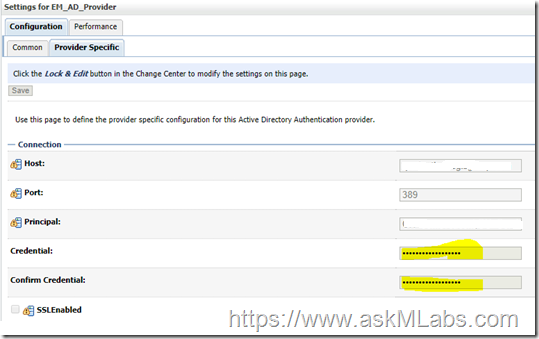
From the above error messages, the “resultCode=49” indicates that the bad password is used. Now we understand that the issue is to deal with the service account password. We changed the service account oem.service password and then updated the password in weblogic console as shown below.


Follow the navigation to update the password ….

Domain - > Environment - > Security Realms - > myrealm - > providers

image

image

image

image


Save the password. And then activate the changes.


Ideally we don’t  need to bounce the services to take these changes effect. But if you could offer the bounce, please bounce the complete OEM services.


Hope this information helps….

ACFS Mount Missing On Exadata - ACFS-02017 , CLSU-00101

This post talks about an Exadata RAC ASM issue. This issue is observed after completing Exadata patching.  It is observed that the ACFS mount point is missing. The following steps explains how we identified the issue and How can we troubleshoot this issue.

This is a 8 node Exadata full rack. The ACFS mount point is missing on first node , but all other 7 nodes have this ASM mount point.


First try to get the missing mount point …

Use “df –h” on any node where you can see the ACFS mount point. In our case getting the ACFS mount point details from node2 exaaskmdb02


[root@exaaskmdb02 ~]# df -h /u01/app/askmacfs
Filesystem            Size  Used Avail Use% Mounted on
/dev/asm/askmdata-282  512G   64G  449G  13% /u01/app/askmacfs
[root@exaaskmdb01 ~]#


Check1 :

Using these details, try to manually mount the ACFS on node1 exaaskmdb01


[root@exaaskmdb01 ~]# mount -t acfs /dev/asm/askmdata-282  /u01/app/askmacfs
mount.acfs: CLSU-00100: operating system function: open64 failed with error data: 2
mount.acfs: CLSU-00101: operating system error message: No such file or directory
mount.acfs: CLSU-00103: error location: OOF_1
mount.acfs: CLSU-00104: additional error information: open64 (/dev/asm/askmdata-282)
mount.acfs: ACFS-02017: Failed to open volume /dev/asm/askmdata-282. Verify the volume exists.
[root@exaaskmdb01 ~]#


We are not able to mount the ACFS mountpoint. The first approach for any troubleshooting is to analyze the error messages. Cetain times, there could be useful error messages, which can directly help to point to the issue. But sometimes, the error messages may not help to focus on the real issue , rather informational messages. Your experience will count a lot in these scenarios where you should be able to relate the error message to the issue.


Check2:

The error message which caught to our attention is “No such file or directory”. Now our next check will be to check the directories…

On exaaskmdb01 check the directories  /dev/asm/askmdata-282 and /u01/app/askmacfs

[root@exaaskmdb01 ]# ls -lrt /dev/asm/askmdata-282
ls: cannot access /dev/asm/askmdata-282: No such file or directory

[root@exaaskmdb01 ]# ls -ld /u01/app/askmacfs
drwxrwxr-x 11 grid oinstall 4096 May  9 12:00 /u01/app/askmacfs


Same thing, verify on any other node ( 2-8)

[root@exaaskmdb02 ]# ls -lrt /dev/asm/askmdata-282
brwxrwx--- 1 root asmadmin 248, 144385 Sep 12 15:33 /dev/asm/askmdata-282

[root@exaaskmdb02 ]# ls -ld /u01/app/askmacfs
drwxrwxr-x 11 grid oinstall 4096 May  9 12:00 /u01/app/askmacfs


From the above check, it is clear that node1 exaaskmdb01 is missing a directory. Now lets check further how to bring this directory. As these are ACFS mounts, there could be possibility that these are missing due to ACFS drivers not loading properly during node reboot. Let’s concentrate on the ACFS drivers….


Check3:

Check acfs modules to be loaded …

[root@exaaskmdb01 ~]# lsmod | grep oracle
oracleacfs           4825088  0
oracleadvm            806912  3
oracleoks             659456  2 oracleacfs,oracleadvm


This check looks good, the acfs drivers are loaded properly. The next check would be to check the ACFS volume informaiton.

Check4:

ASMCMD> volinfo --all
Diskgroup Name: ASKM_DG

         Volume Name: ASKMDATA
          Volume Device: /dev/asm/askmdata-282
          State: DISABLED                               <<<< Check this. This volume is disabled.
          Size (MB): 524288
          Resize Unit (MB): 64
          Redundancy: MIRROR
          Stripe Columns: 8
          Stripe Width (K): 1024
          Usage: ACFS
          Mountpath: /u01/app/askmacfs


From the above output, we get that the volume is disabled. Now let’s check the same thing on the other nodes exaaskmdb02-08


[grid@exaaskmdb02 ~]$ asmcmd
ASMCMD> volinfo --all
Diskgroup Name: ASKM_DG

         Volume Name: ASKMDATA
          Volume Device: /dev/asm/askmdata-282
          State: ENABLED                     <<< It is enabled on node2
          Size (MB): 524288
          Resize Unit (MB): 64
          Redundancy: MIRROR
          Stripe Columns: 8
          Stripe Width (K): 1024
          Usage: ACFS
          Mountpath: /u01/app/askmacfs


From the above check4, we understood that this is due to the reason that the volume is not enabled by default after patching. Now we need to enable this volume and mount this ACFS manually.


Solution

ASMCMD> volenable -G ASKM_DG -a
ASMCMD> volinfo --all
Diskgroup Name: ASKM_DG

         Volume Name: ASKMDATA
          Volume Device: /dev/asm/askmdata-282
          State: ENABLED
          Size (MB): 524288
          Resize Unit (MB): 64
          Redundancy: MIRROR
          Stripe Columns: 8
          Stripe Width (K): 1024
          Usage: ACFS
          Mountpath: /u01/app/askmacfs

ASMCMD> exit
[grid@exaaskmdb01 ~]$ ls -lrt /dev/asm/askmdata-282
brwxrwx--- 1 root asmadmin 248, 144385 Sep 12 15:56 /dev/asm/askmdata-282

[root@exaaskmdb01 ~]# ls -ld /u01/app/askmacfs
drwxrwxr-x 2 grid oinstall 4096 Mar 18  2016 /u01/app/askmacfs

[root@exaaskmdb01 ~]# mount -t acfs /dev/asm/askmdata-282 /u01/app/askmacfs

[root@exaaskmdb01 ~]# df -h /u01/app/askmacfs
Filesystem            Size  Used Avail Use% Mounted on
/dev/asm/askmdata-282  512G   64G  449G  13% /u01/app/askmacfs
[root@exaaskmdb01 ~]#


That’s it. We fixed the issue.


Questions to the readers

Q1) Where do you find the ASM related modules/drivers on Linux OS ?

Q2) What to do if you find any missing ASM modules/drivers on Linux OS ?

Q3) How to load the asm drivers if they were not loaded by default during node reboot ?


Refer to my other post <Place Holder> which is similar to this issue , but happened during our exa grid upgrade from 12.1.0.2 to 12.2.0.1.


Hope this information helps….

Tracing DBCA

Written By askMLabs on Wednesday, August 25, 2010 | 9:05 AM

The present article discusses the tracing of DBCA. Sometimes you may be landing into issues when using the DBCA and you may not have any clue for the  error. Enabling the tracing for DBCA will give more detailed output showing some clue for the issue.

Till release 10g , we have to manually enable tracing ...

Modify the jre command at the end of the  file : $ORACLE_HOME/bin/dbca  as ...

$JRE_DIR/bin/jre -DORACLE_HOME=$OH -DJDBC_PROTOCOL=thin -mx64m -DTRACING.ENABLED=true -DTRACING.LEVEL=2 -classpath $CLASSPATH oracle.sysman.assistants.dbca.Dbca $ARGUMENTS

But from Release 10g onwards , this tracing is automatically enabled.

We can find the tracing file at

$ORACLE_HOME/cfgtoollogs/dbca/trace.log   ==> in 10g

$ORACLE_BASE/cfgtoollogs/dbca//trace.log  ==> in 11g

Hope it helps

--SRI

$ORACLE_HOME/bin/db

 
Support :
Copyright © 2013. askMLabs - All Rights Reserved
Proudly powered by Blogger